
How to sign a document in RDD with Certilia
Sign a PDF in RDD with your Certilia certificate. If you start signing from SmartAccount, the signed document returns to SmartAccount automatically.
Open your document for signing
A document from SmartAccount
On the document page, review the PDF, confirm your review and select Pripremi potpisivanje (Prepare signing). Then use that page's Otvori RDD i potpiši (Open RDD and sign) button.
Before you sign
Have access to Certilia and your active qualified signing certificate. Being able to sign in does not mean you can sign documents. If you received an invitation, the person named in it must sign using their own certificate.
If you sign in using the Certilia mobile app, make sure it is activated. Follow Certilia's official instructions to set up your certificate and app.
How to set up a Certilia profile
If the document or signer details are incorrect, contact the sender before signing.
1. Choose Certilia
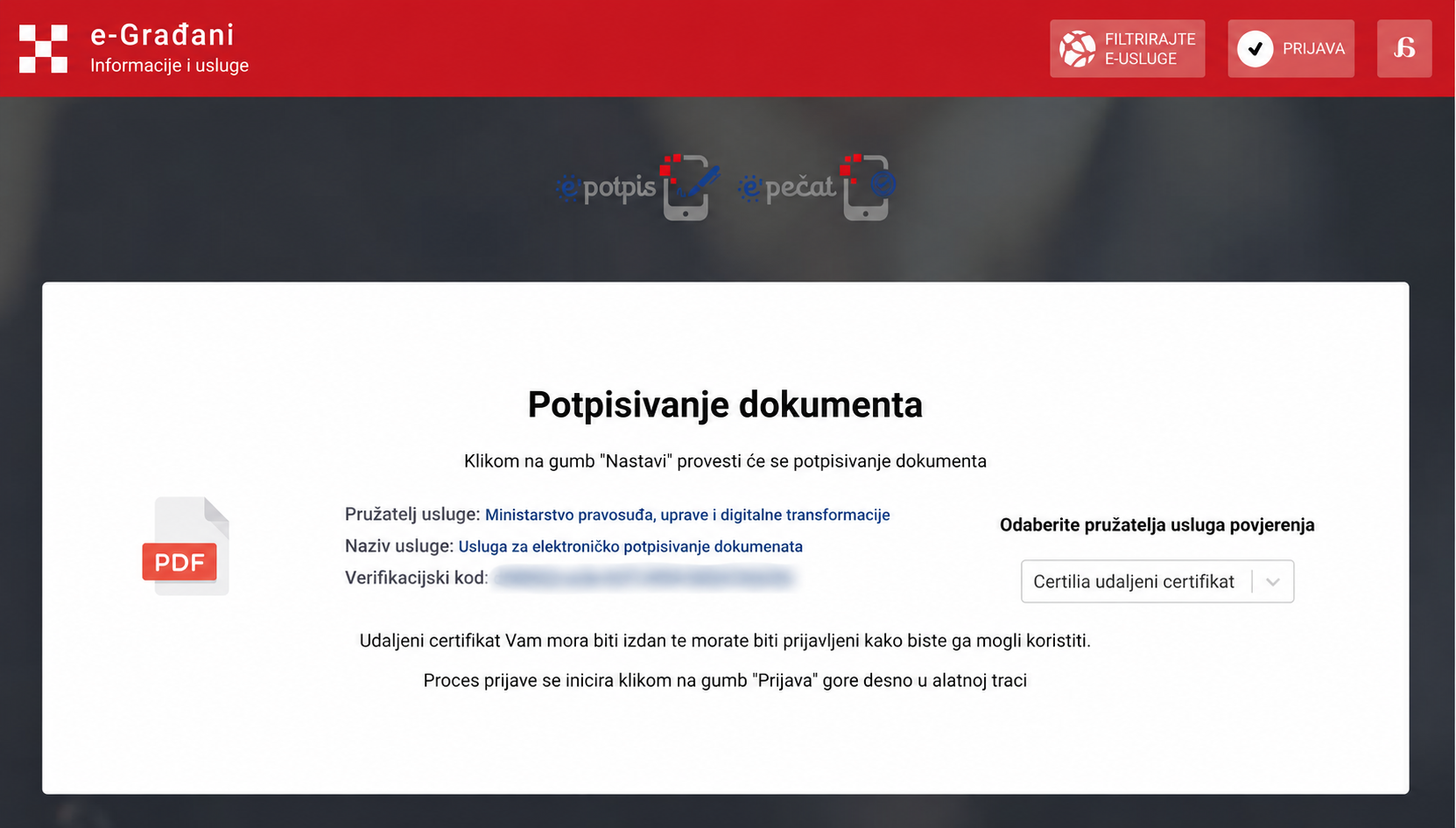
On the Potpisivanje dokumenta (Document signing) page, choose Certilia udaljeni certifikat (Certilia remote certificate). Then click Prijava (Sign in) in the top-right corner.
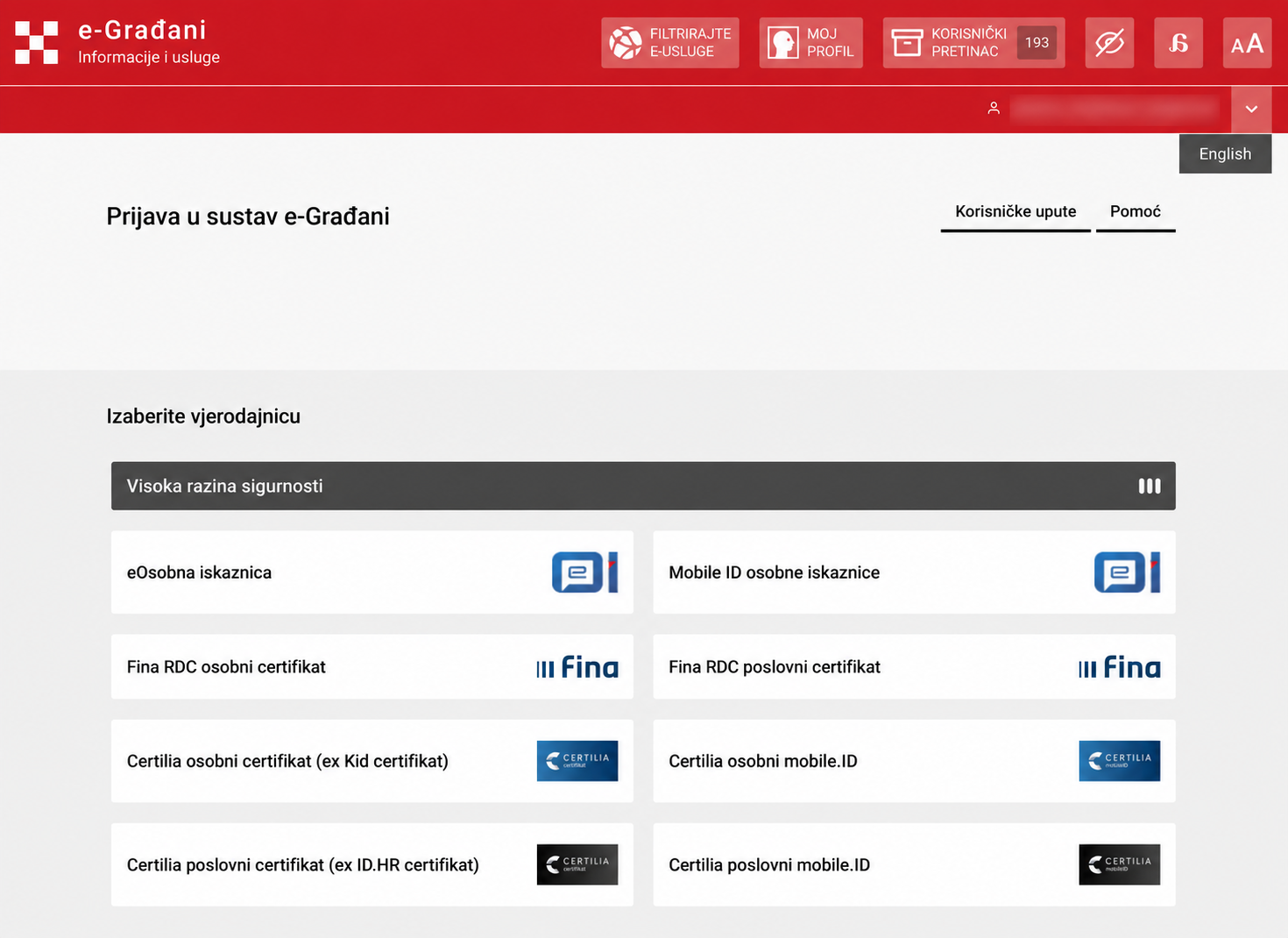
2. Sign in to e-Građani
Choose the Certilia credential you use, personal or business. To sign in with the mobile app, choose the appropriate Certilia mobile.ID option.
Follow the instructions to finish signing in. A successful sign-in does not mean the document has been signed.
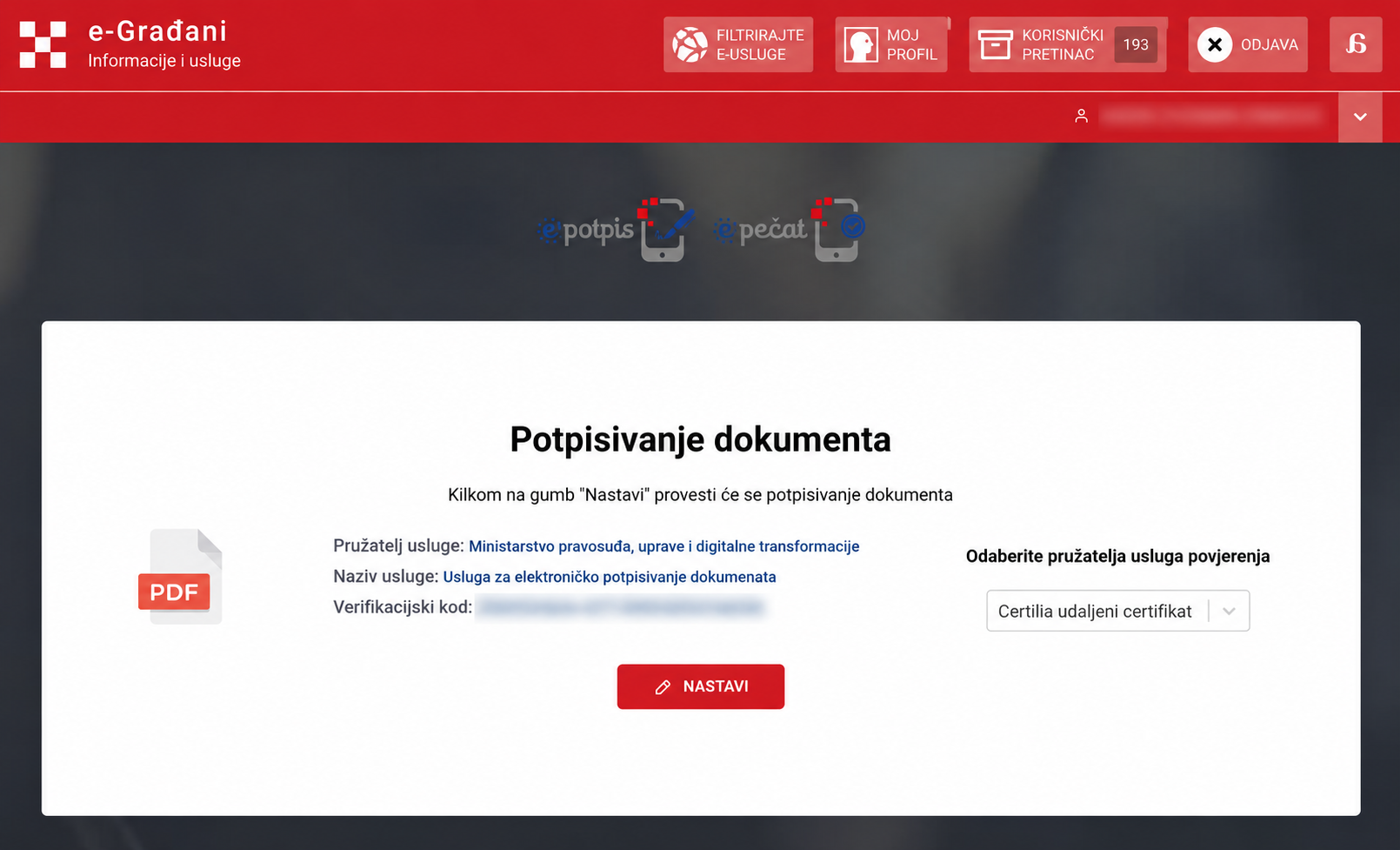
3. Continue in RDD
After completing sign-in, return to RDD and click Prijava (Sign in) again. Then select Nastavi (Continue) to sign the document.
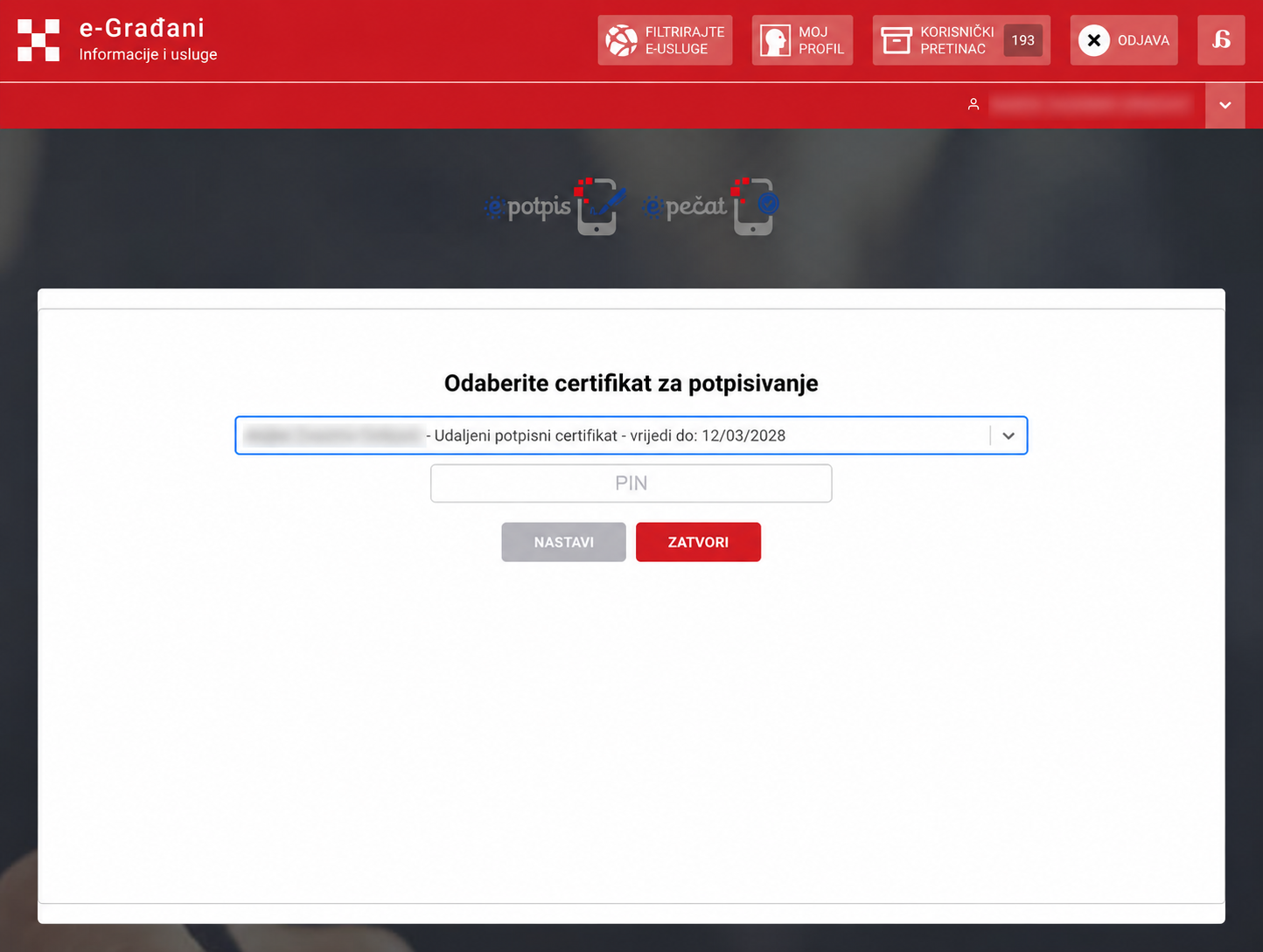
4. Choose your certificate and enter your PIN
On the Odaberite certifikat za potpisivanje (Select a signing certificate) screen, choose the certificate with your name.
Enter your signing PIN. Find it in the Certilia app when you start signing there. Your signing PIN is different from the PIN used to sign in.
Click Nastavi (Continue) and wait for RDD to finish signing.
5. Finish signing
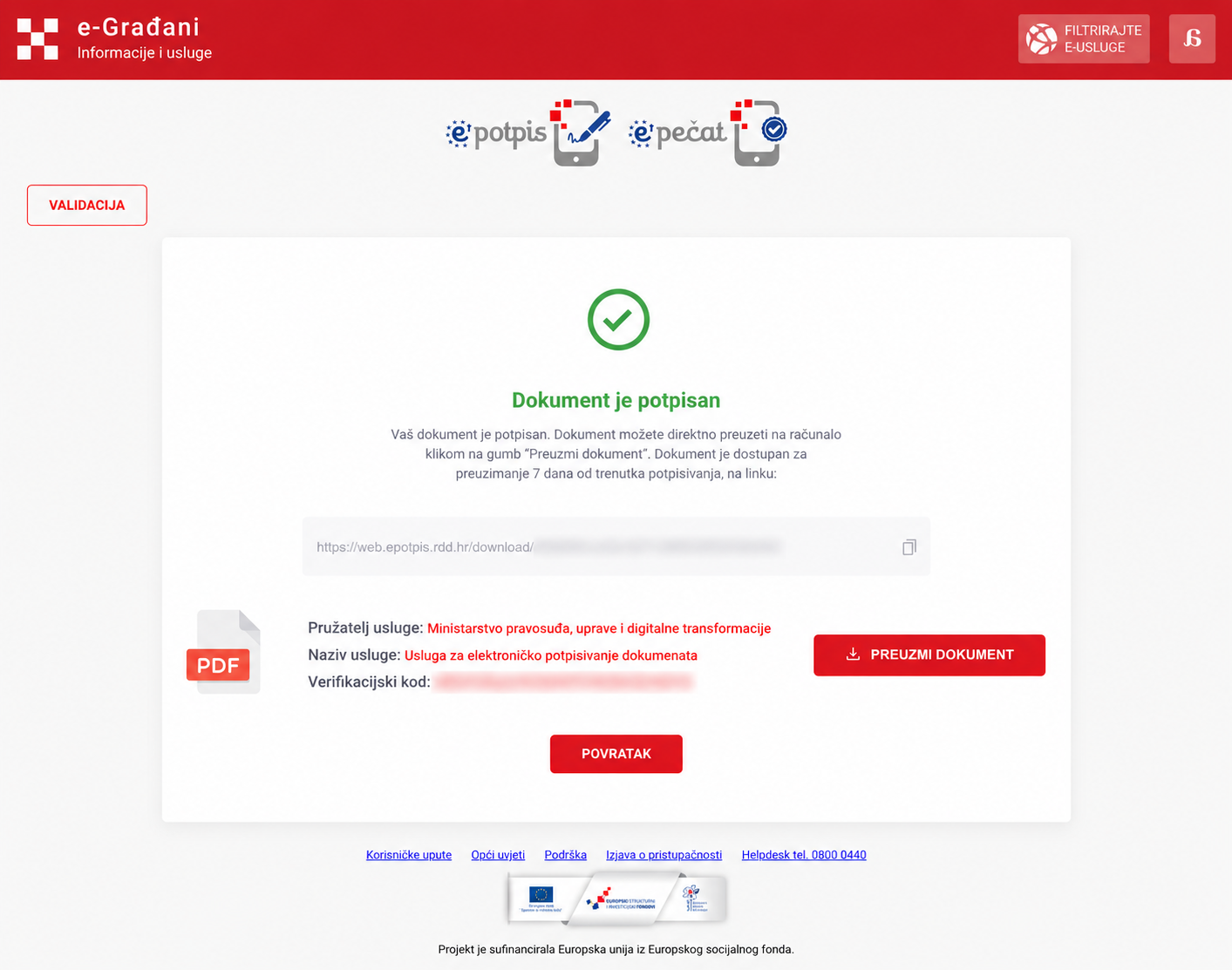
Wait for the green message Dokument je potpisan (The document is signed).
If you started from SmartAccount, you can close the RDD tab. The signed PDF is retrieved and verified automatically in SmartAccount.
If you prepared the document directly in RDD, click Preuzmi dokument (Download document) and save the signed PDF before closing the tab.
Status and downloads in SmartAccount
If you started signing from SmartAccount, your signed document will be available there after verification.
The document page updates its status automatically. To check immediately, you can select Provjeri (Check). This button is optional; verification continues in the background.
Once SmartAccount confirms the signature, the document page will show this. You can download the signed PDF from SmartAccount.
If signing is incomplete
If you closed RDD before seeing Dokument je potpisan, signing may be incomplete. For a document from SmartAccount, return to its page and select Ponovno otvori RDD (Reopen RDD) if available.
SmartAccount's verification may still be in progress after RDD confirms signing. You do not need to sign again; if a service is temporarily unavailable, we repeat verification in the background.
If the invitation has expired or SmartAccount says the signature was not accepted, contact the document's sender. For help, you can send us the document name and the message you see. info@smartaccount.hr