
Mobile app
SmartAccount on your phone
Submit documents, view banking data and show your company details for business invoices. The app is for existing SmartAccount clients.
How to install the app and sign in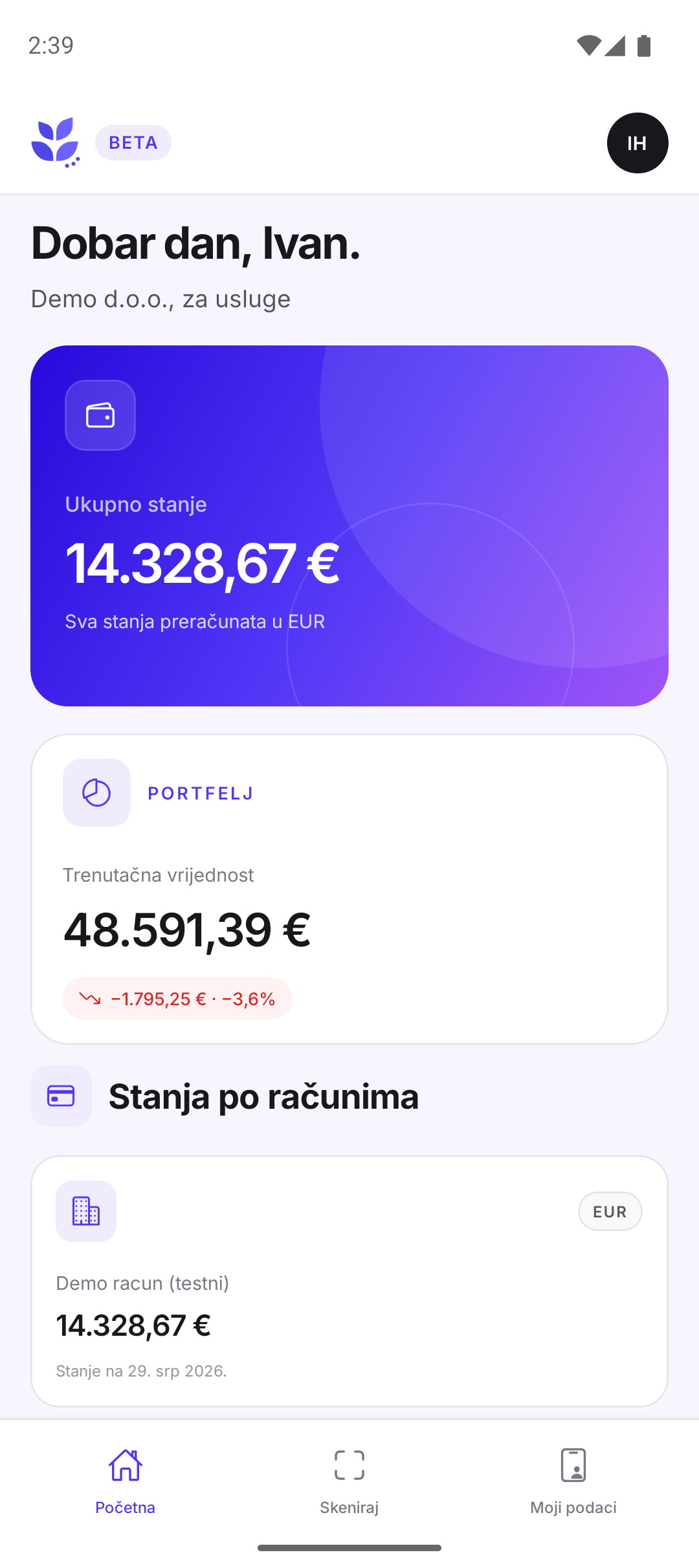
What you can do in the app
Submit documents from your phone
Scan documents with your camera or import existing PDFs and photos. Review and arrange pages before sending them to SmartAccount.
View your banking data
Check the latest retrieved balances of your connected business accounts and view recent transactions.
Show your company billing details
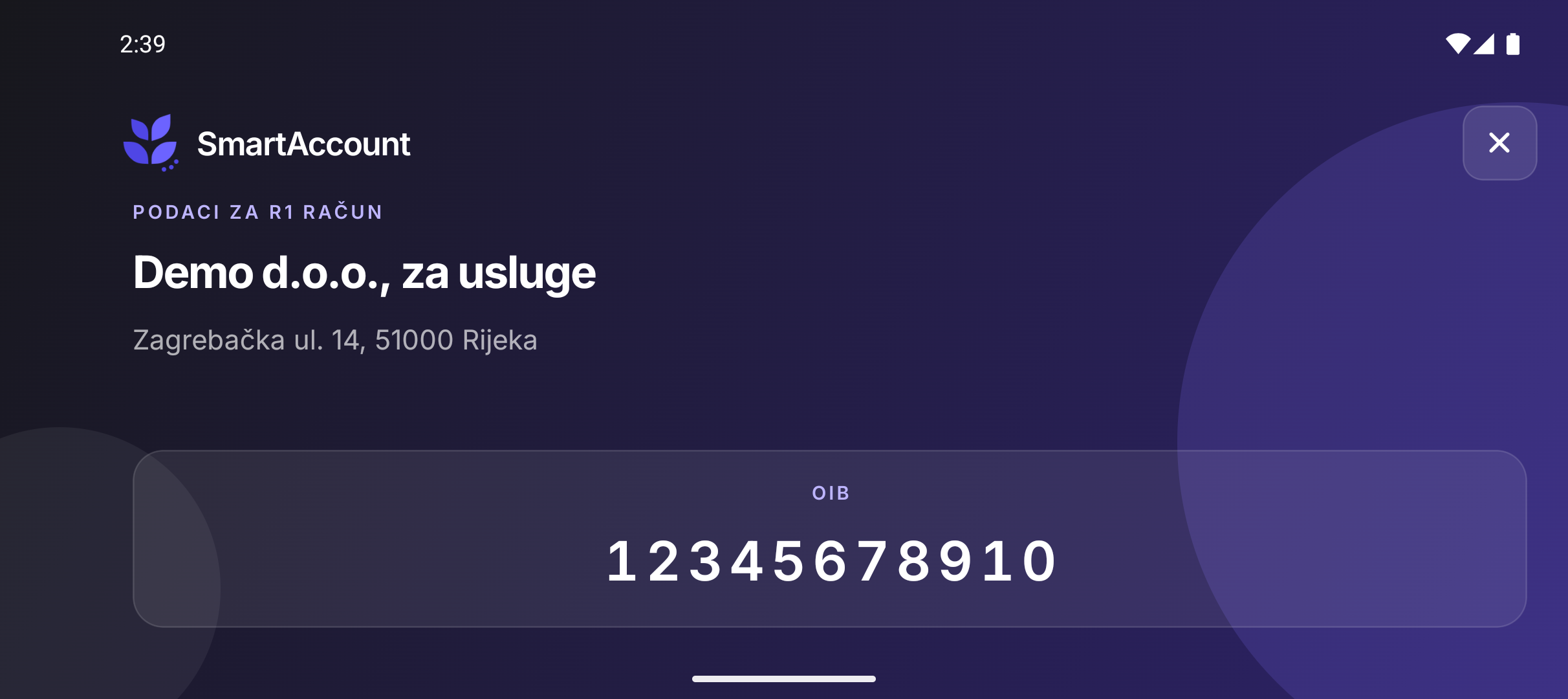
Your company's name, Croatian tax ID (OIB) and address appear on a digital R1 card you can show when making a purchase.
Installation and first sign-in
Use the same SmartAccount account you use on the web.
Download the app
On Android, open Google Play. On iPhone, install TestFlight first, then open the SmartAccount beta link and install the app.
Sign in with your existing account
Tap ‘Sign in’ in the app. Sign-in opens in your browser, where you use your existing SmartAccount account.
Return to the app
After signing in, return to SmartAccount to access your company's data.
Need help with the app?
Tell us whether you use Android or iPhone and which step you need help with.