
How to connect your bank account to SmartAccount
If AIS is enabled for your company, you can connect a business bank account to SmartAccount to fetch transactions and balances automatically. You approve access through your bank. SmartAccount does not ask for your banking password.
These instructions are for the web app. Screenshots show the actual interface with demonstration data; the bank name and IBAN are examples only.
Before you connect
Sign in as your company administrator and have access to your business online or mobile banking ready. AIS must be enabled for your company and connection must be available for your bank.
1. Open your bank account in settings
Open Postavke → Bankovni računi (Settings → Bank accounts). If the account has not been added yet, select Dodaj račun (Add account), enter its details and IBAN, then select Kreiraj (Create). AIS requires a correct IBAN, even though the form lists it among optional details.
In the actions menu next to the account, select Poveži banku (Connect bank). If a connection already exists, select Upravljaj vezom (Manage connection). Check that the displayed bank and IBAN belong to the account you want to connect.
2. Select your bank
Choose your bank from the Odaberite banku (Select bank) list, then press Nastavi na povezivanje (Continue to connection). Read the notice beside the button: creating a request may reserve a fee with Pondi, and billing starts when you approve the connection.
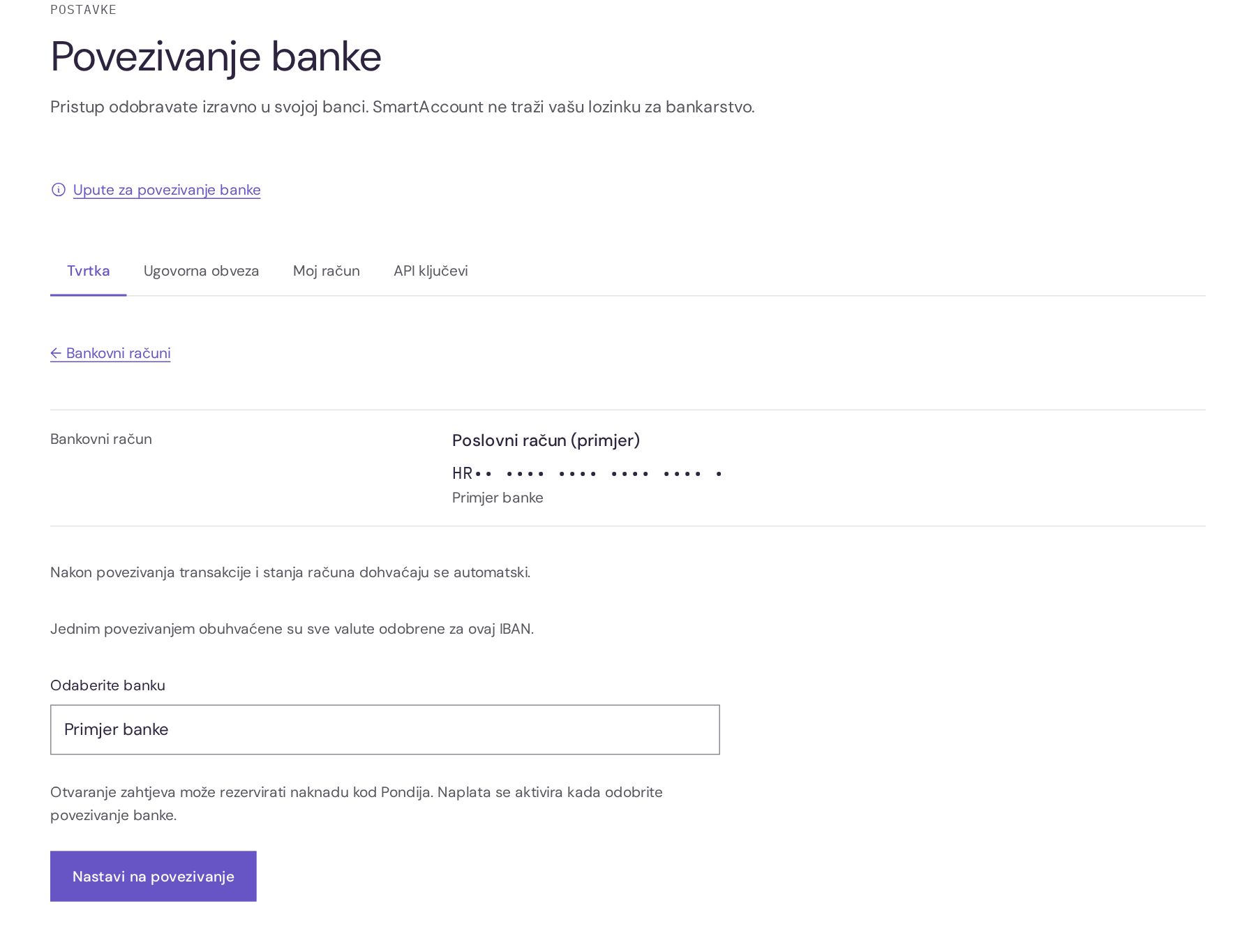
3. Approve access through your bank
When Čeka se odobrenje u banci (Waiting for bank approval) appears, select Odobri pristup (Approve access). A new tab opens. Follow your bank’s process, sign in as usual and approve access to the business account you are connecting. The screens and approval method depend on your bank.
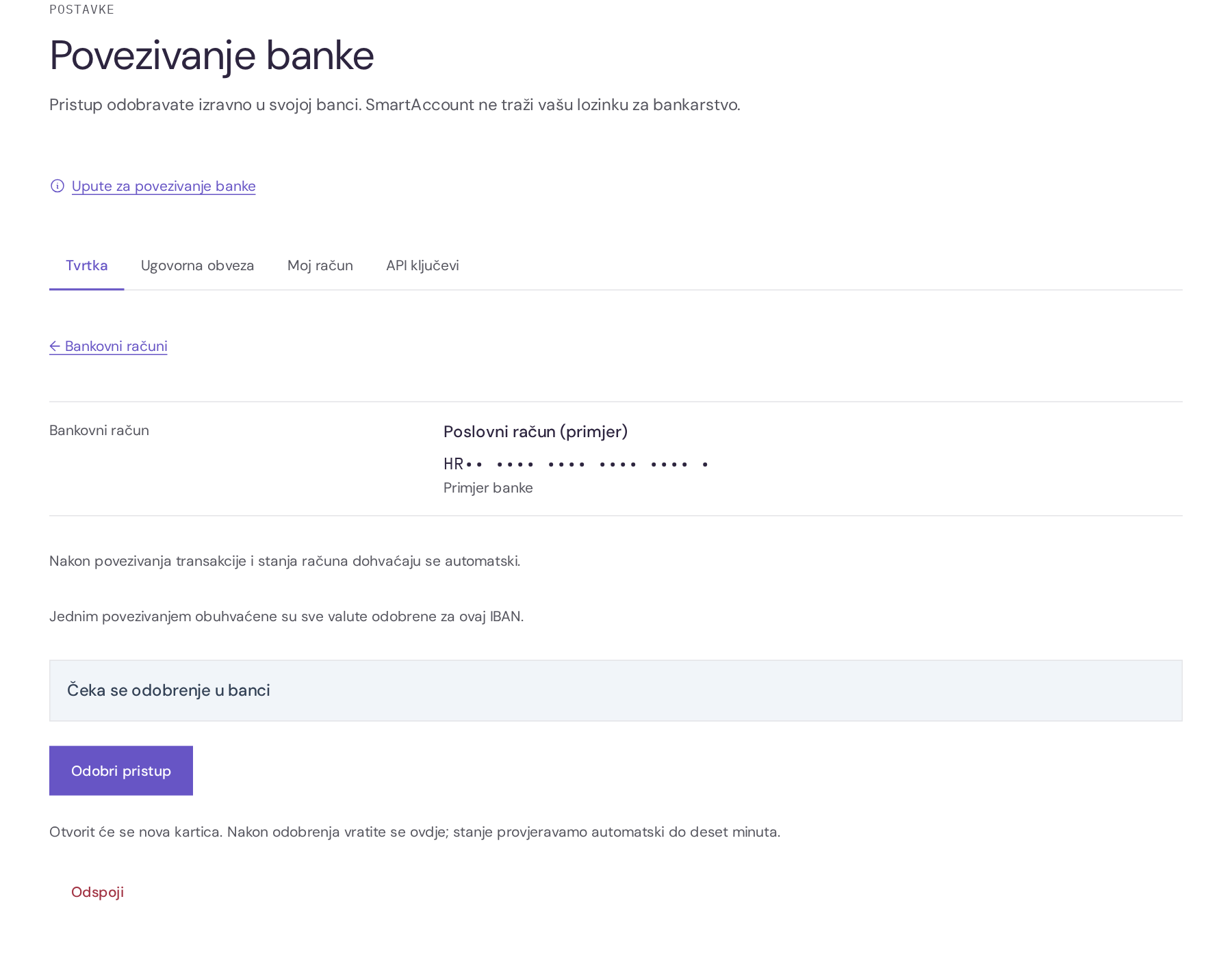
After approval, return to the SmartAccount tab. The status is checked automatically for up to ten minutes. If you spent longer at the bank, reload the connection management page.
4. Check the account connection
SmartAccount checks the bank and IBAN and connects the account automatically. One connection covers all currencies you approved for that IBAN. While verification is in progress, wait for Račun je povezan (Account connected). If the connection does not complete, contact support.
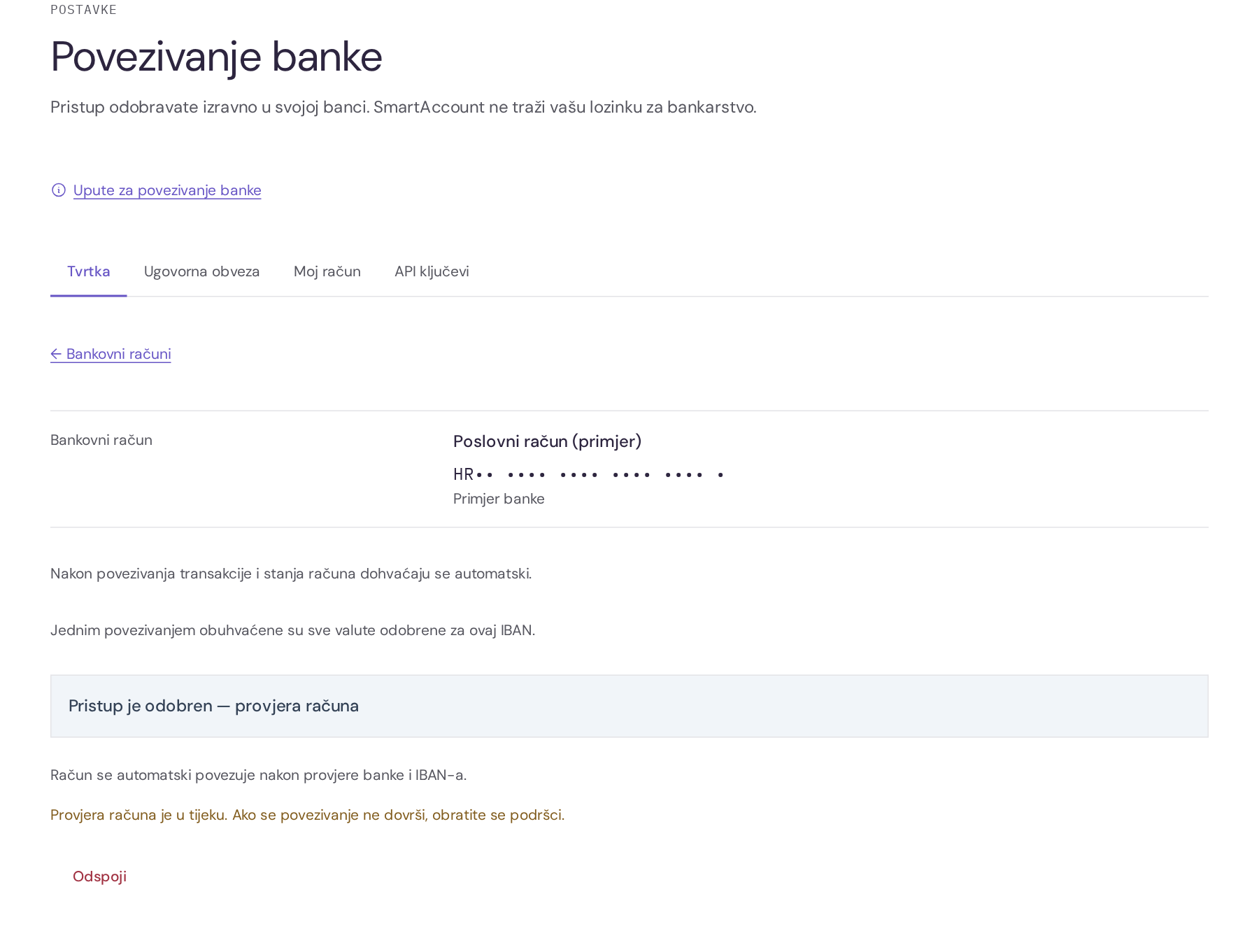
5. Check the status and synchronization
The connection is complete when Račun je povezan (Account connected) appears. Fetching transactions and balances is enabled automatically for a newly verified connection. The first fetch may still be in progress: Još nije dovršena (Not completed yet) means the first successful synchronization has not yet been recorded.
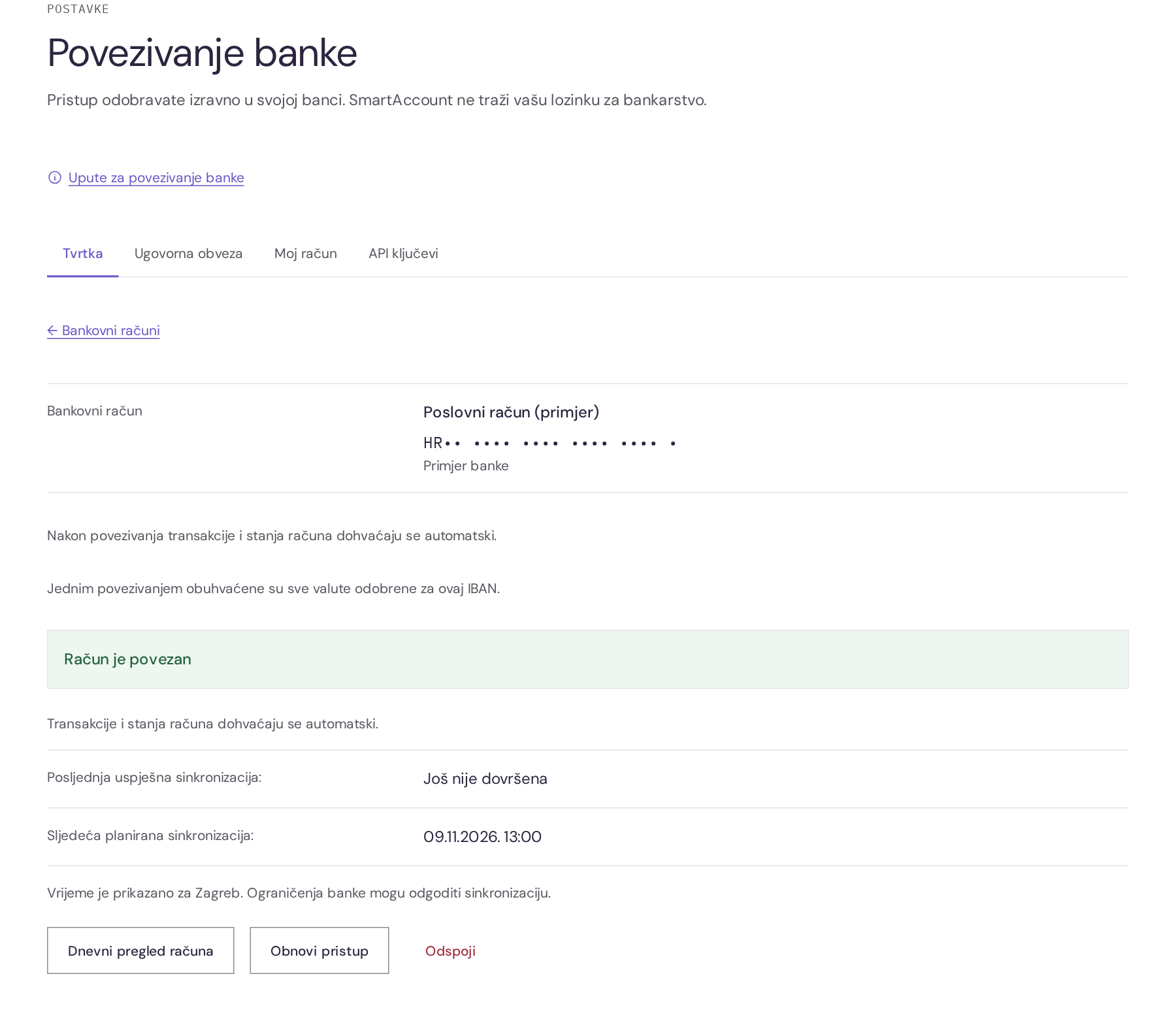
On the same page, check the last successful and next planned synchronization. Times are shown for Zagreb, and bank limits may delay fetching. Dnevni pregled računa (Daily account overview) opens the transactions and balances overview.
Connecting does not automatically import the account’s entire history. Automatic imports start from the connection day or after the last already imported day, depending on existing data. Arrange statement delivery for earlier periods with your accountant.
If the connection does not complete
Cannot see Poveži banku, or the page says connection is not enabled? Check that you are an administrator of the selected company and contact support to check AIS. If the bank list is unavailable, reload the page. If your bank is not listed, contact support.
If access is approved but account verification does not finish, check the IBAN and that you approved the correct account through your bank. If the result is unknown or a request stays in progress, do not create a new request. Reload the page and contact support if the status remains unchanged.
If a connected account says automatic synchronization is paused or imports are not enabled yet, contact support. If the page asks you to provide CAMT statements until activation, continue providing them.
Renewing and disconnecting access
In three months, you will need to renew access and approve the bank connection again. You will receive an email with a link to this guide so you can repeat the process.
On a connected account, select Obnovi pristup (Renew access) when you need new consent. After expiry or rejection, Ponovno poveži (Reconnect) may appear. Renewal disconnects the previous connection and starts a new approval, so automatic fetching pauses until you complete the bank process. The expected renewal date shown is only an estimate; the bank may request consent earlier.
Odspoji (Disconnect) revokes access to all accounts approved under the same consent. Existing transactions remain saved. If you want to return to importing CAMT statements, arrange this with support first; disconnecting alone does not restore that import method.