Travel orders
Travel orders in SmartAccount let you manage the entire business travel process, from submitting a request before departure to settling expenses after returning.
The process has four stages: request, approval, expense calculation and certification. A digitally signed PDF document is generated automatically at the end of each key stage.
Process overview
Request
Approval
Expense calculation
Certification
Travel order request
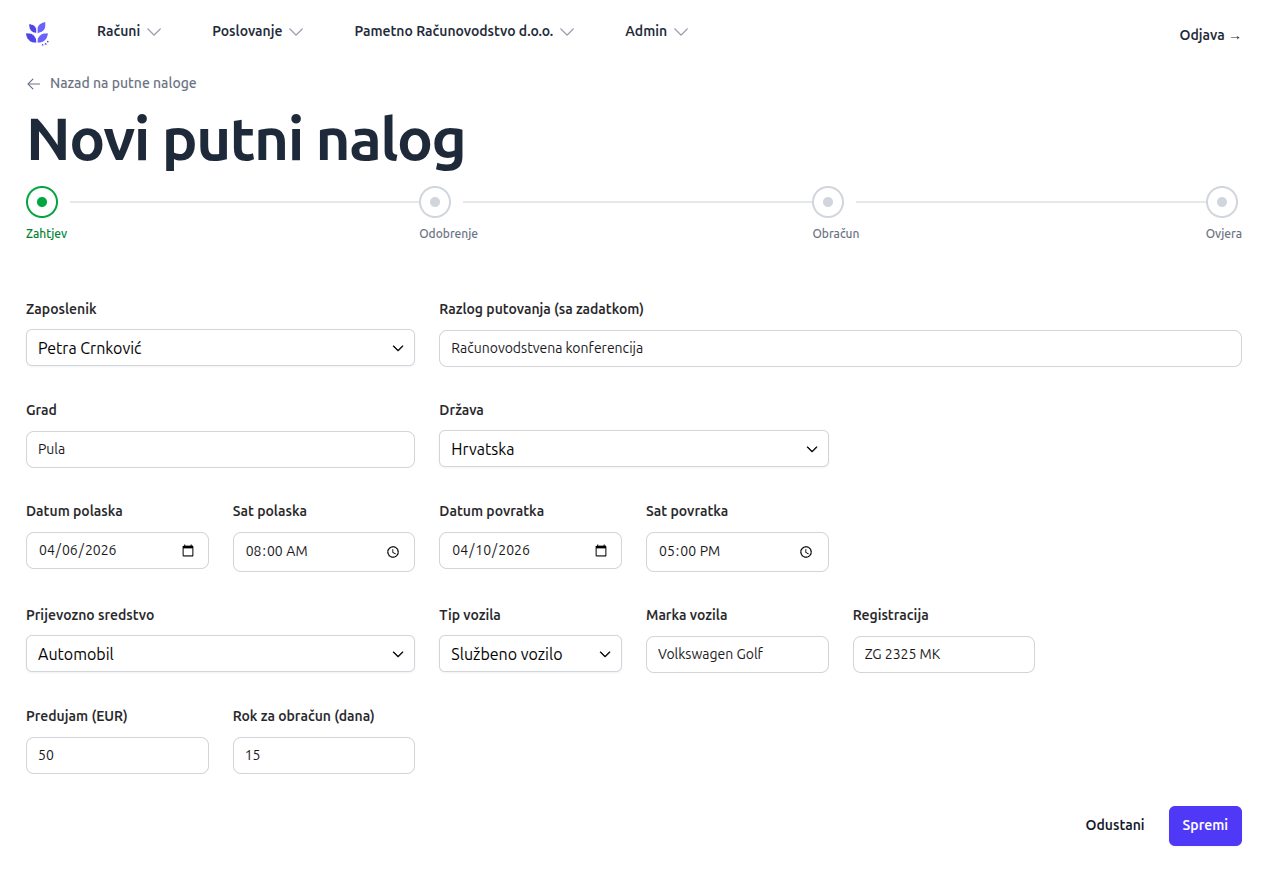
The employee creates a business travel request with all the required details:
Destination
The destination city and country.
Travel dates
Departure date and time, and return date and time.
Purpose of the trip
The reason and objective of the business trip.
Mode of transport
Plane, train, bus or car. When travelling by car, vehicle details are also entered.
Advance payment
The advance amount the employee receives before travelling.
Expense submission deadline
The deadline for the employee to submit their expense calculation after the trip ends.
Travel order approval
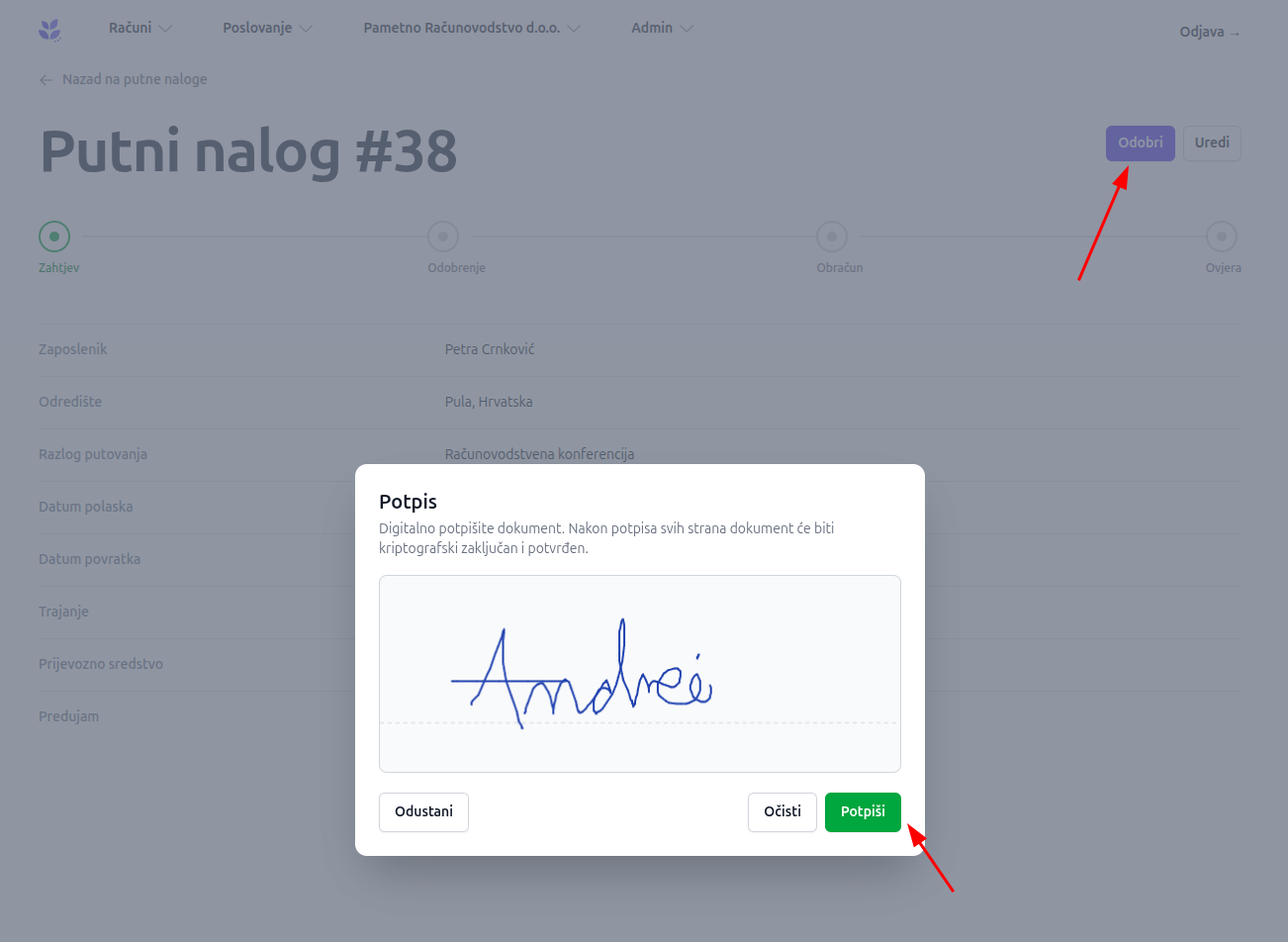
An authorised person reviews the request and approves it with a digital signature. After approval, a "Travel order" PDF is automatically generated and attached to the request.
The employee is notified that the travel order has been approved and can download the generated document.
Travel expense calculation
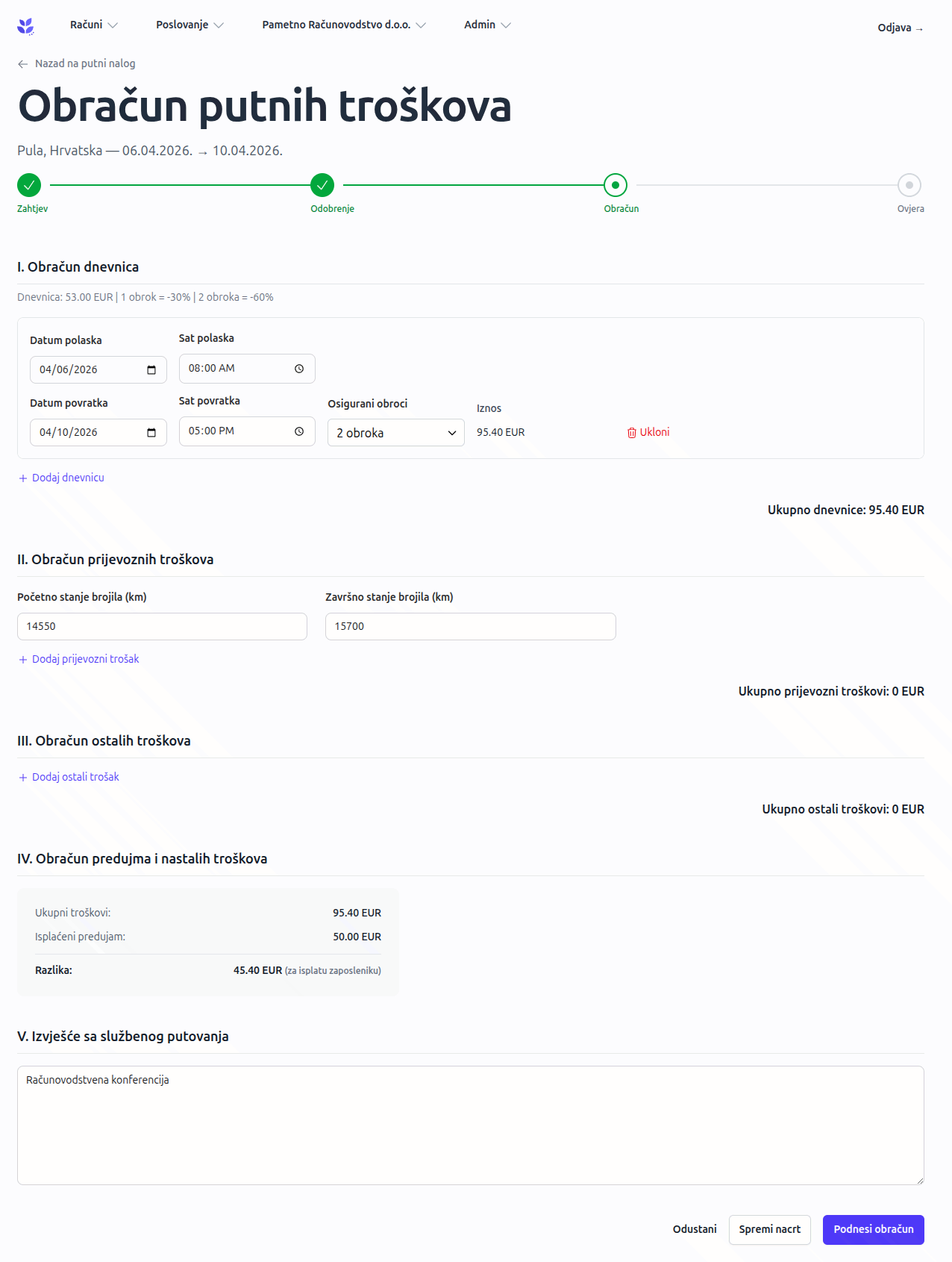
After the trip ends, the system automatically changes the request status to "Awaiting expense calculation" and emails the employee a reminder. The employee completes an expense calculation with the following sections:
I. Daily allowance calculation
Daily allowances are calculated automatically based on the destination country's rate. If meals are provided, the allowance is reduced: one meal means a 30% reduction and two meals a 60% reduction.
II. Transport expenses
For car travel, the starting and ending odometer readings are entered. Transport expenses are entered as items with the number of kilometres and the rate per kilometre.
III. Other expenses
Accommodation, business entertainment, fees and other expenses are entered as separate items.
IV. Summary
The system automatically calculates total expenses and compares them with the advance paid. It shows the balance the company owes the employee or the employee must return.
V. Business trip report
The employee enters a written report on their activities during the trip and submits the expense calculation with their digital signature.
Certifying the expense calculation
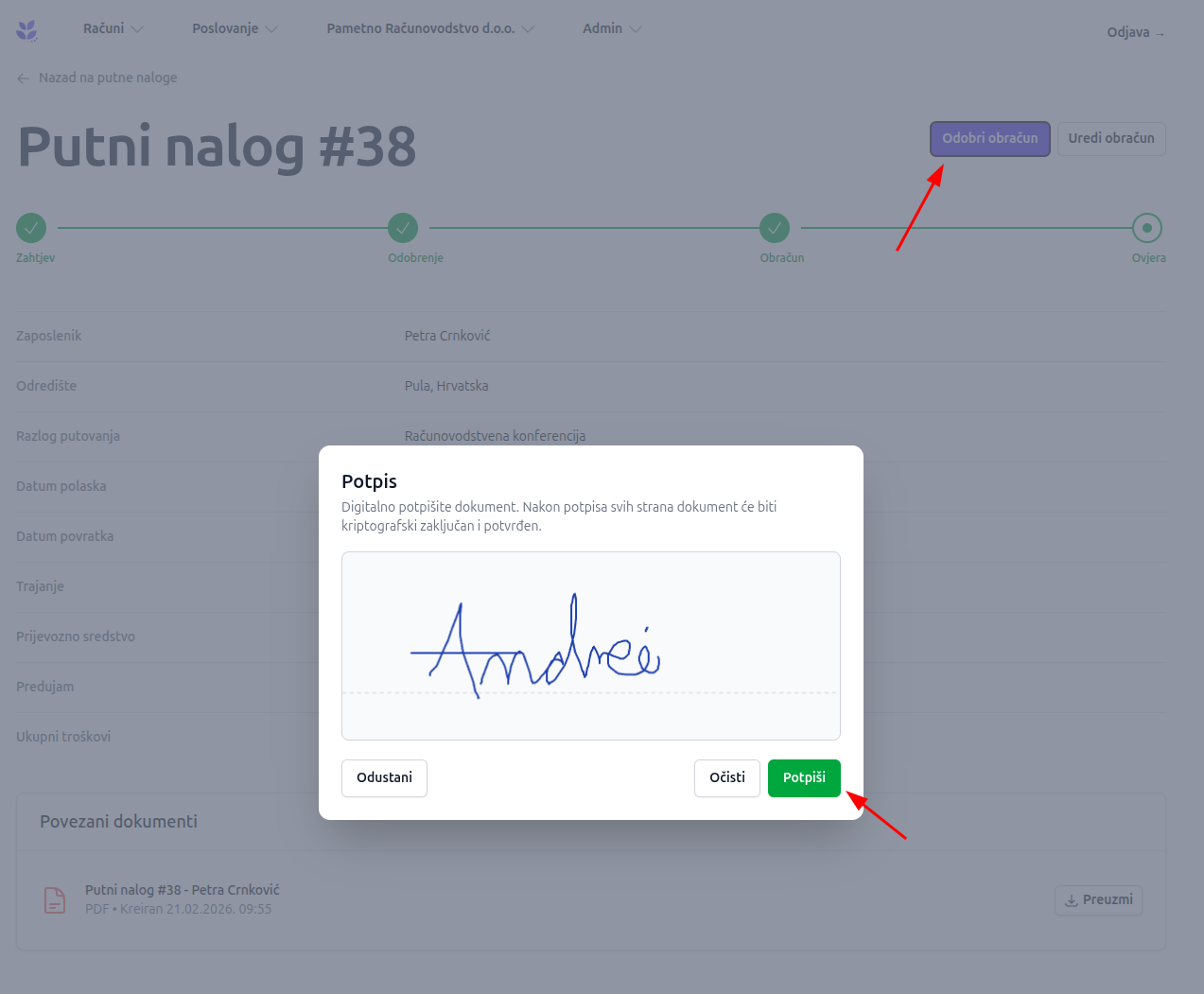
An authorised person reviews the submitted travel expense calculation and certifies it with a digital signature. The final "Travel expense calculation" PDF is then generated automatically.
Additional information
Numbering
Travel orders are numbered sequentially within each year (e.g. #1, #2, #3 for the current year).
Daily allowances by country
Daily allowance rates are configured for each country, with amounts in EUR or USD that are converted automatically.
PDF documents
A PDF is generated automatically at two points: after the request is approved ("Travel order") and after the expense calculation is certified ("Travel expense calculation").
Notifications
The authorised person is notified when a new request is created or an expense calculation is submitted. The employee receives an automatic reminder to submit their expense calculation the day after the trip ends.
Linked to employees
Each travel order is linked to an employee record in SmartAccount. Employee details must be entered before creating the first travel order.
For further questions, please contact us.